Understanding 4K Upscaling and Bitrate Requirements
This article explains the relationship between video resolution, bitrate, and file size when upscaling from 1080p to 4K, using test data from a browser-based tool.

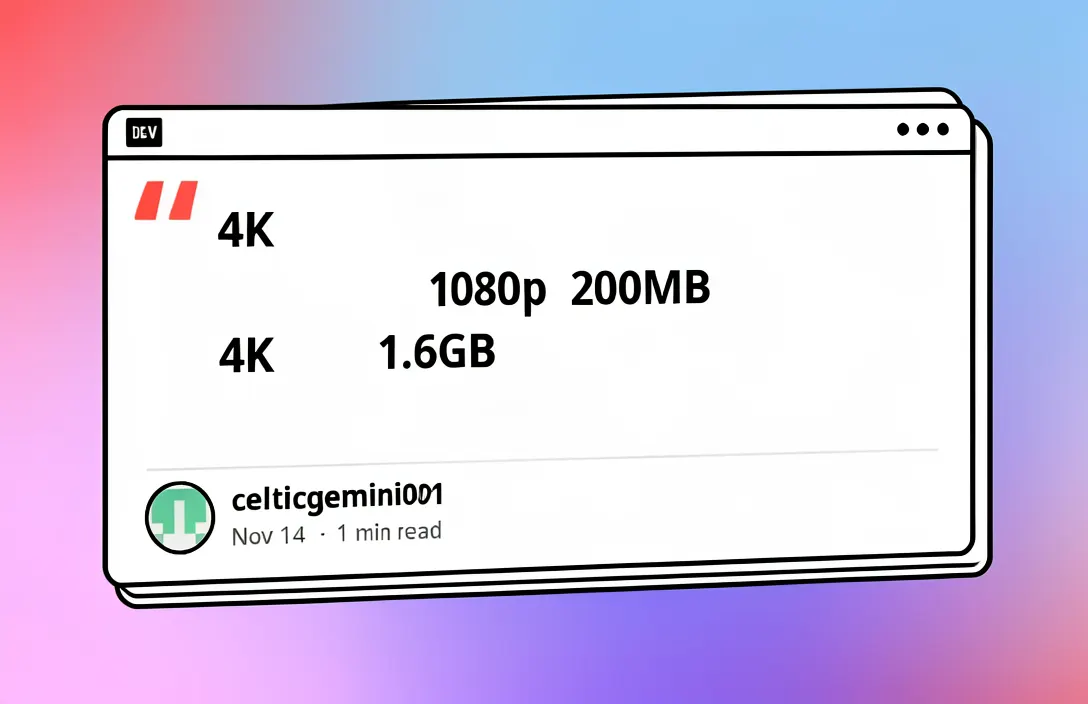

Upscaling a video from 720p to 4K significantly increases file size due to the increased number of pixels. According to the Dev.to article, a 720p clip with a bitrate of 4.8 Mbps can increase to 38 Mbps when upscaled to 4K, resulting in a file size increase of up to three times. This increase is due to the fourfold increase in pixel count, as well as the amplification of noise and the default encoder settings that increase bitrate automatically. The article explains that simply increasing resolution without adjusting the bitrate can lead to a degradation in quality, as the additional pixels may not contain sufficient detail to justify the increased file size. [1]
The article emphasizes that the key to maintaining video quality during upscaling is ensuring that the bitrate is appropriate for the resolution. For example, a 1080p video should have a bitrate of 8–12 Mbps, while a 4K video should have a bitrate of 35–45 Mbps. If the original video has a low bitrate, such as 5 Mbps for a 720p clip, upscaling to 4K may not provide any meaningful improvement in quality. In such cases, it is recommended to maintain the original resolution and increase the bitrate instead of upscaling, as this can result in a more efficient and higher quality video. [1]
The article also highlights the importance of using advanced codecs like H.265 (HEVC) when upscaling to 4K, as this can reduce the required bitrate by 30–40% while maintaining the same level of quality. However, the article cautions that upscaling should only be done when the original video has a sufficiently high bitrate and when the final output is intended for platforms that support 4K resolution. Otherwise, upscaling may result in unnecessary file size increases without any significant improvement in visual quality. The article concludes that file size alone is not a reliable indicator of video quality, and that the appropriate bitrate for the resolution is the most important factor to consider. [1]
The source discusses a specific tool, UpgoLAB, which operates entirely within a browser and does not require installation. It allows users to upscale video clips from 720p to 1080p or 4K without watermarks, and it is free to use. The article is based on the author's own test clips, not promotional material, and provides specific numerical data on file size changes when upscaling. For example, a 720p clip that is 200MB in size becomes 1.6GB when upscaled to 4K, demonstrating the significant increase in file size associated with higher resolutions. [1]
Advertisement
The article explains that the increase in file size when upscaling from 1080p to 4K is typically 6 to 10 times larger due to three main reasons: the increase in pixel count (from 1920×1080 to 3840×2160, which is four times larger), the amplification of noise as the model estimates fine details, and the encoder setting where the Constant Rate Factor (CRF) is kept the same, leading to an automatic increase in bit rate. This means that simply increasing resolution without adjusting bit rate can lead to a significant increase in file size without a corresponding improvement in quality. [1]
The article provides practical bit rate guidelines for different resolutions and frame rates. For 1080p at 30fps, the recommended bit rate is between 8 and 12 Mbps, while for 4K at 30fps, the recommended bit rate is between 35 and 45 Mbps. The article emphasizes the importance of not lowering the original bit rate when upscaling, as this can result in a degradation of quality. For example, a 720p clip with a 5 Mbps bit rate that is upscaled to 4K but encoded at 3 Mbps would result in a reduction in information content by 60%, which is considered a degradation rather than an enhancement in quality. [1]
The article also discusses the importance of using H.265 (HEVC) encoding when upscaling to 4K, as it can reduce the bit rate by 30 to 40% while maintaining the same level of quality. This is particularly effective for 4K content. The article provides a practical example of a 12-second clip that was tested with different resolutions and bit rates, showing that upscaling a 720p clip to 4K does not necessarily improve visual quality, even though the file size increases significantly. The final decision was to use a 1080p version with a 12 Mbps bit rate, as it provided a better balance between quality and file size. [1]
The article concludes with a decision flow for determining whether to upscale to 4K, based on the original bit rate of the source material. If the original bit rate is below 10 Mbps, the article recommends stopping at 1080p. If the original bit rate is above 15 Mbps, then upscaling to 4K is considered a viable option, provided that a bit rate of at least 35 Mbps is used. The article also notes that using H.265 encoding can help reduce the bit rate while maintaining quality. It further warns that upscaling without proper bit rate adjustments can lead to visual degradation, and that repeated compression can also lead to quality loss. [1]
Advertisement
Upscaling a video from 720p to 4K significantly increases file size due to the increased number of pixels. The article explains that the number of pixels in 4K resolution (3840×2160) is four times that of 1080p (1920×1080), leading to a substantial increase in file size when upscaling. This increase is further exacerbated by the amplification of noise and the need for higher bitrates to maintain quality (source ID: 1). [1]
The key to maintaining video quality during upscaling is ensuring that the bitrate is appropriate for the resolution. The article highlights that for 1080p30 video, a practical bitrate range is 8–12 Mbps, while for 4K30, the range is 35–45 Mbps. Maintaining this range ensures that the video does not lose quality due to insufficient information in the original file (source ID: 1). [1]
Using advanced codecs like H.265 (HEVC) when upscaling to 4K can reduce the required bitrate by 30–40% while maintaining the same level of quality. The article notes that H.265 is particularly effective for 4K upscaling, as it allows for higher quality at lower bitrates compared to H.264. This makes H.265 a more efficient choice for high-resolution video compression (source ID: 1). [1]
Sources
Prepared with AI assistance from the cited sources.
The Cali Reporter newsletter
The stories worth your time.
California, the country, and what comes next. Join our free newsletter for reporting that keeps you informed.
More in Technology
- Google Play's Closed Testing Requirements and the Importance of Feedback
Google Play's closed testing rule emphasizes the need for developers to gather meaningful feedback from testers, not just track app installs. This approach ensures that real user experiences are evaluated and addressed…
- World Diabetes Day 2026 Focuses on Early Diagnosis and Awareness
The 2026 World Diabetes Day campaign emphasizes the importance of early diagnosis, equitable access to care, and reducing diabetes stigma, according to the WHO. The theme 'Early action on diabetes' highlights the need…
- Understanding Memory Usage on Linux VPS
This article explains how to accurately interpret memory usage on a Linux VPS, focusing on the importance of the 'available' metric and the potential pitfalls of relying on the 'free' column.